Using the Time tab
Use the Time tab to manage clock in and clock out exceptions for employees. Exceptions appear when an employee's clock in and clock out times do not match the time that they are assigned to work. For example, if an employee has failed to clock in or makes a late or early entry.
In this screen team managers can review and amend exceptions so that hours can be finalised. Once hours are finalised they can be passed to payroll.
Clock data can be pulled through to WORKSuite from a number of places:
- An external time and attendance system.
- Clock terminals provided by Working Time Solutions.
- Employees utilising the
 button in myTIME.
Note: Thresholds for clocking in and out are set when you first configure WORKSuite with Working Time Solutions.
To work with team exceptions, follow the steps below:
- The Team Exceptions tab is preselected. It is currently the only option available in the Time tab:
- Use the filters on the left to refine the exceptions shown. Choose from:
- Teams. Select the calendar and work area that you want to view.
- Week. Select the week that you want to view.
- Status. Select to view 'New/Pending' exceptions.
- Issue Type. Select the type of exception that you want to view.
- Click Apply at the top of the screen, when displayed, to apply your selected filters.
- Use the Sort option on the left to determine the order that exceptions are displayed.
-
Use the search function in the top right the screen if required. This is useful if filtered results still display a high number of exceptions.
- Amber. Data has not been saved.
- Green. Data has been saved.
- Red. Missing events.
- Amber. Late/early clocking in/out.
- Blue. Unknown events.
- Click on an exception to make an amendment:
- Click Add new clock to list new data (for example, when an employee has forgotten to clock in or out):
- For each line of clock data:
- Select the Date and set the time that you want to clock.
- Select to Clock In or Clock Out. Click
 to reset this field (as you might for a break that is listed). Click
  to remove the data.
 - Choose to:
- Click Finalise.
- If the clock data you have entered falls within the set thresholds, the popup window closes and the exception is automatically finalised.
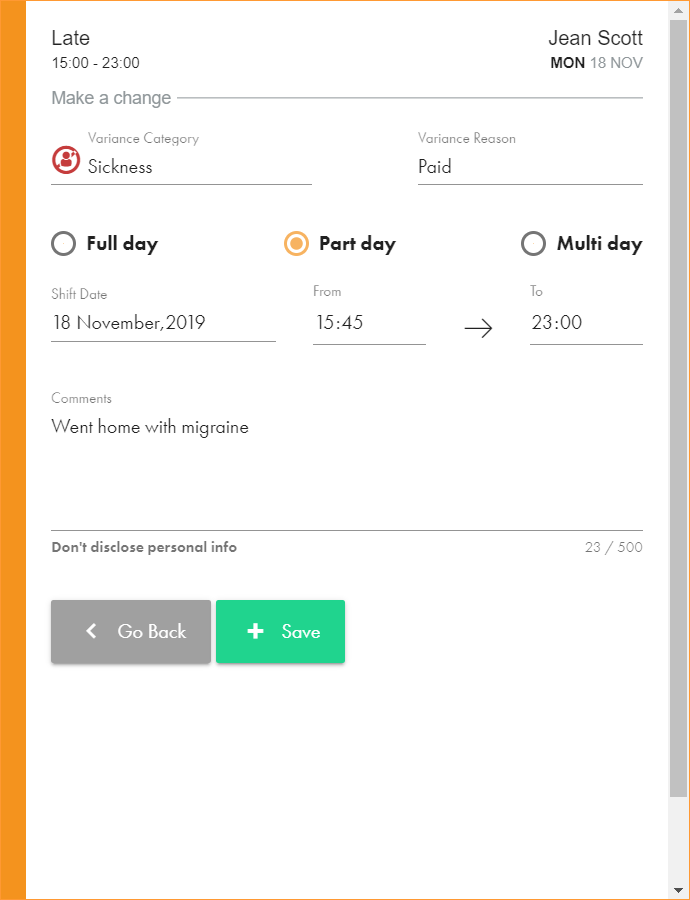
- If the clock data you have entered falls outside of the set thresholds and does match the shift start and end date, you will need to add a variance:
- Variance categories are pre-filtered for the type of exception. For example, if an employee has worked more hours, additional hours variances are displayed. If an employee has worked less hours, holiday or absence variances are displayed.
- The form displayed is prefilled for the start and end of the change to reflect the effect of the clock exception. These fields cannot be edited.
- Work through the variance screens as you would for adding a variance:
- Click Save to finalise the exception.
- Select the 'Finalised' Status on the left of the Time screen to display finalised exceptions:
- Team exceptions can now be forwarded to your payroll.
The  icon indicates the filters you have selected.
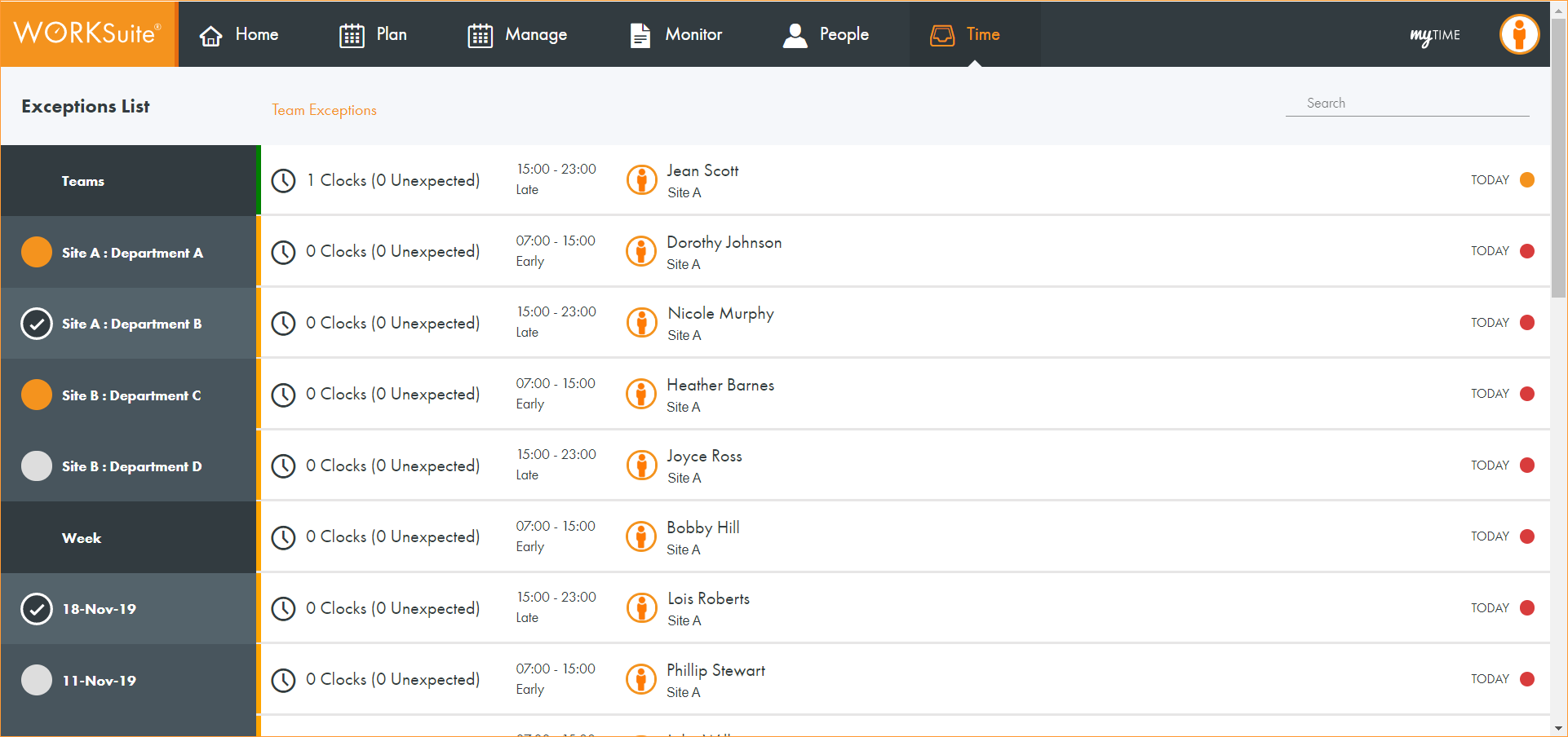
All of the exceptions within your selected parameters are listed.
Your filtered results are displayed:

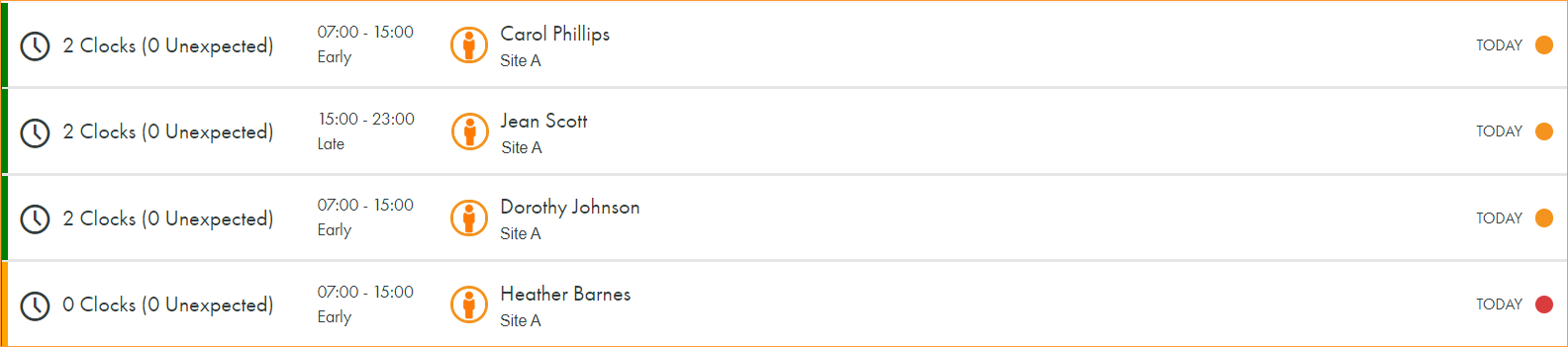
Each exception has a coloured bar displayed to the left indicating its saved status:
Exceptions are listed with the number of clocks and unexpected clocks, shift times and name, name of employee and calendar.
The day of the exception is displayed to the right.
Each exception has a colour coded dot displayed on the right of the screen to indicate its issue type (you may have already filtered by this):
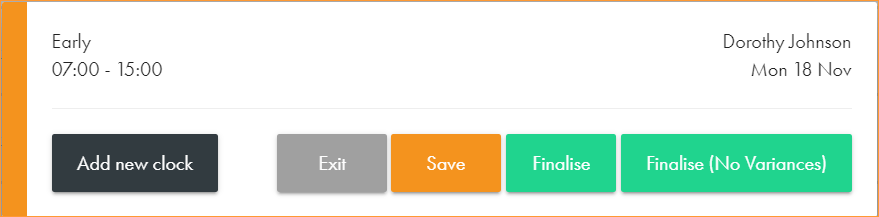
The name and times of the employee's shift are displayed in the top left of the popup window, the date of the shift is in the top right. Any clock in or out data that has already been made is listed.
Note: Only one clock in and one clock out event can be saved for each shift. However, breaks can still be logged here if required. Breaks are shown as 'unknown' events using the (i) symbol.
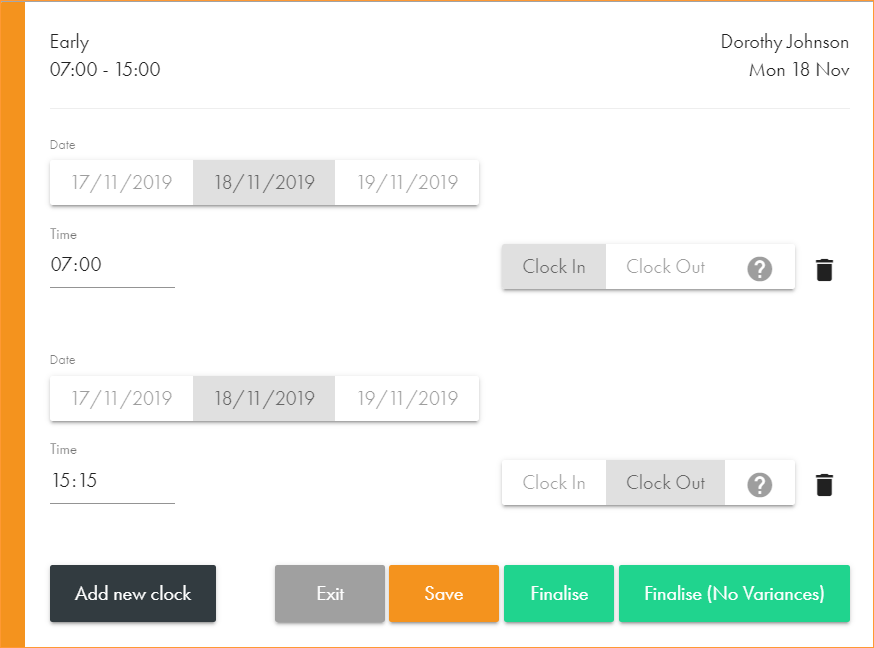
Note: You need to click Add new clock for each line of clock data that you want to add.
 Exit the form without saving data.
Click Exit to close the popup window and return to the exceptions list.
Save data without finalising.
Click Save once you have made amendments if you are not yet ready to finalise.
The clock data is saved, the popup window closes.
Finalise the data and add variances to account for exceptions.
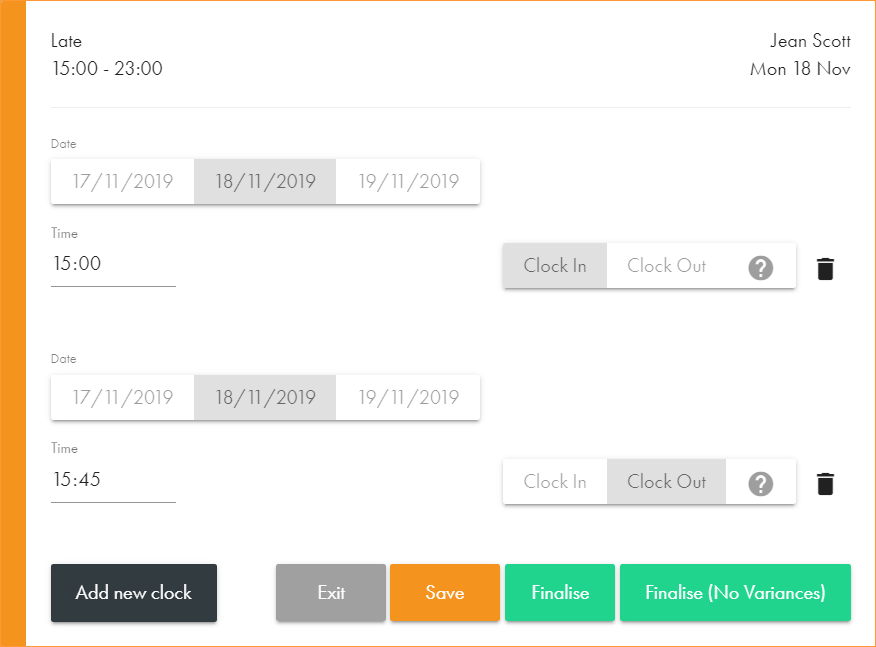
In this example Jean Scott finishes her shift at 15:45 instead of 23:00 as she went home sick.
Note:
 Finalise the data without adding any variances.
This is useful if a manager wants to finalise an exception for an employee who has started a few minutes late or early.
Click Finalise (No Variances). The popup window closes and the exception is automatically finalised.